(503) 626-7766 opt 2
(503) 626-7766 opt 2
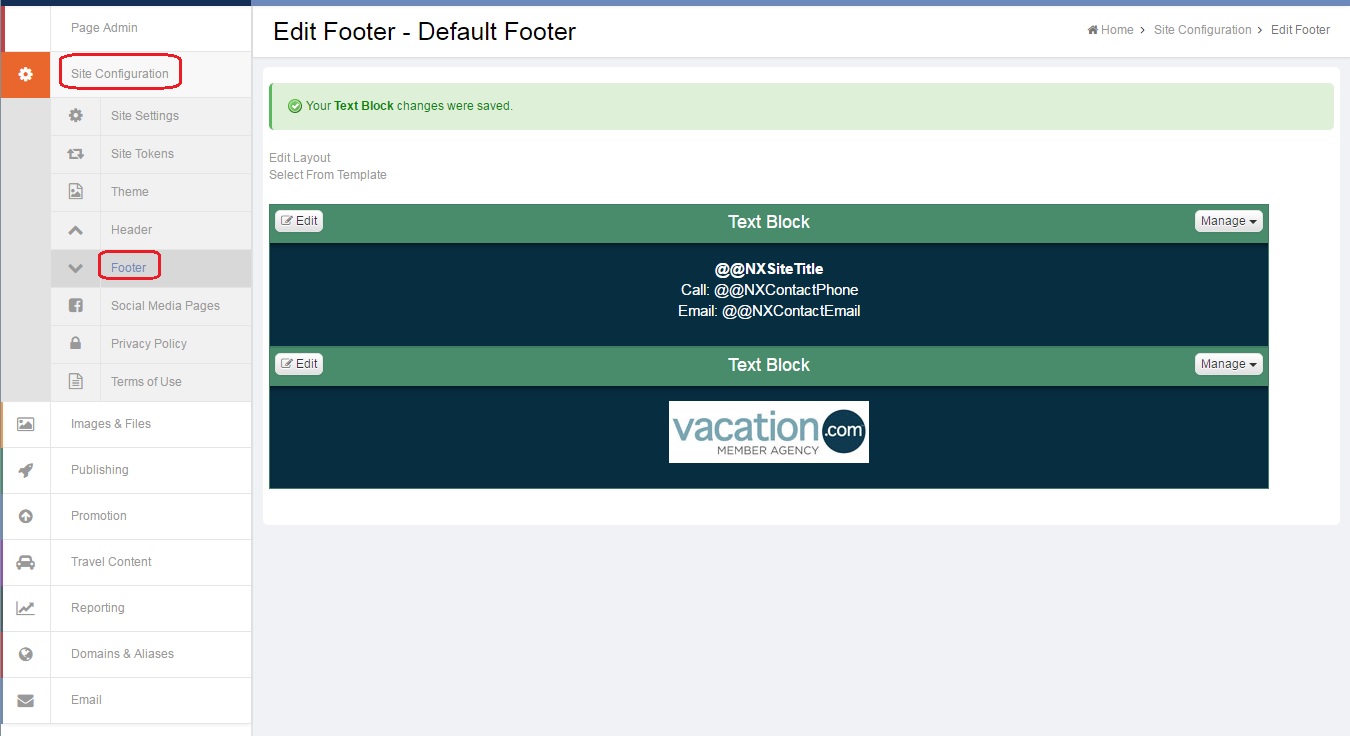
Select Site Configuration from the menu on the left. This will reveal additional menu options. Select Header or Footer depending on where the logo is located on your site. In this example we'll go into the footer:
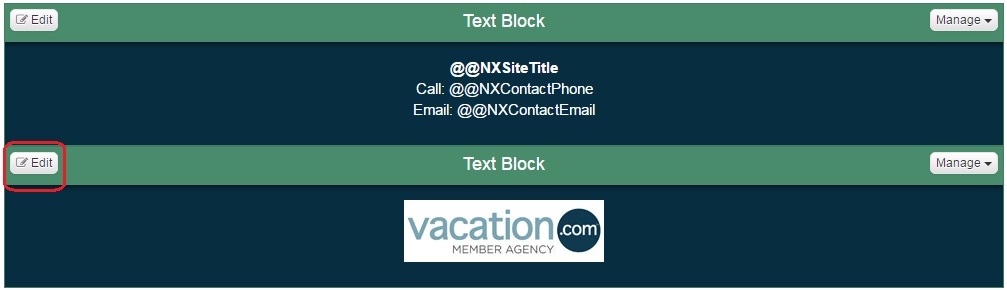
Select the Edit button at the top left of the section that the Vacation.com logo is showing in:
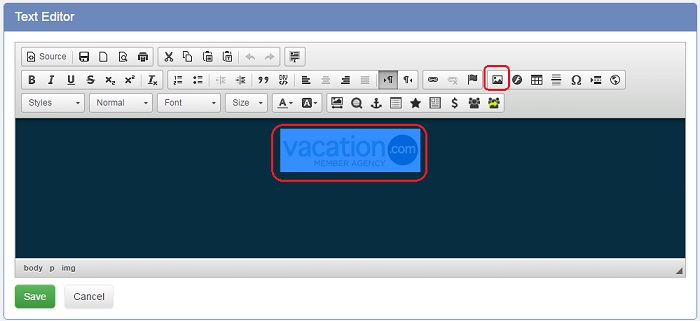
Either double-click on the Vacation.com logo, or select it (which will highlight it) and then select the image button from the row of text editor buttons:
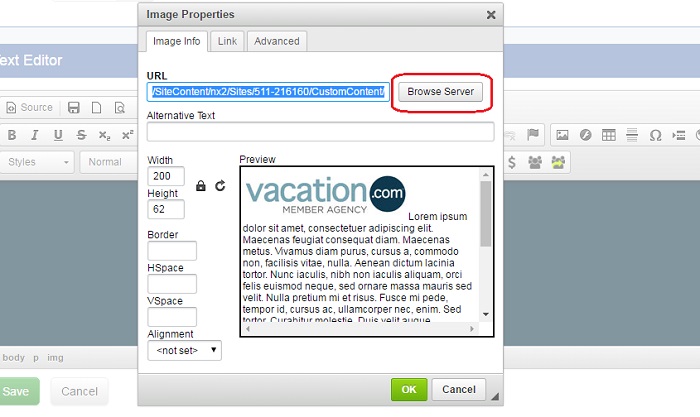
In the Image Properties box that appears, select Browse Server:
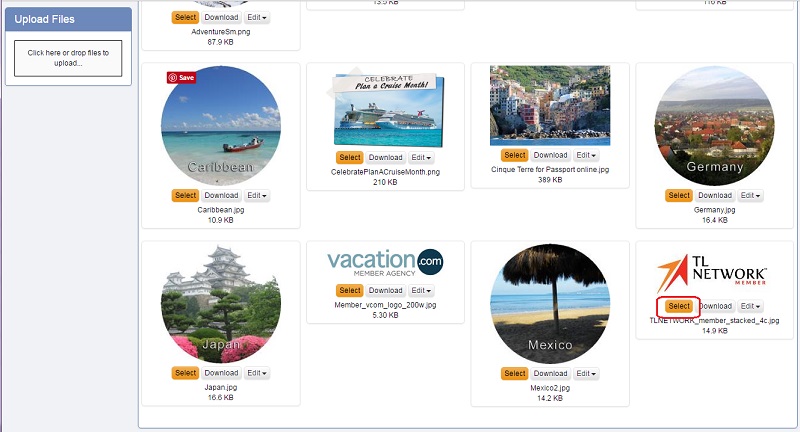
Select which folder from the Folders list on the left that you had saved your Travel Leaders logo in and find the logo in that folder. Select the Select button beneath the logo.
After selecting the new image, you'll be brought back to the Image Properties window with the new logo displaying in the preview. Be sure to add Alternative Text so that search engines will know what the image is, and adjust the width of the image as necessary (numbers are in pixels, in this example 200 pixels is an appropriate size). Make sure the lock icon next to the width field shows as locked to keep the ratio of the image the same. If it is unlocked, select the icon to lock it and readjust your width:
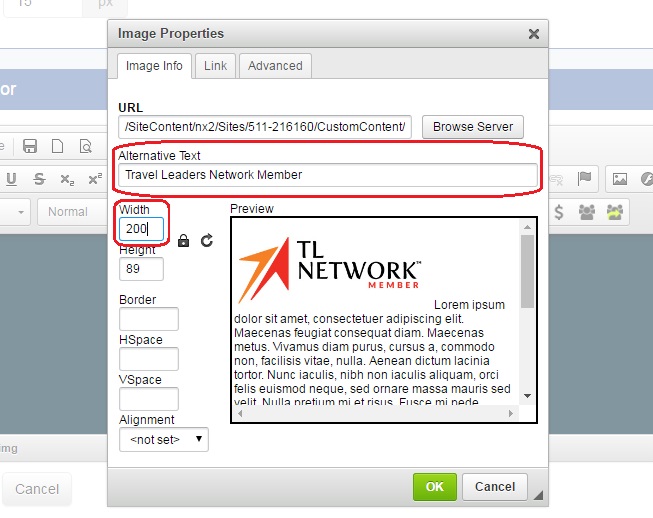
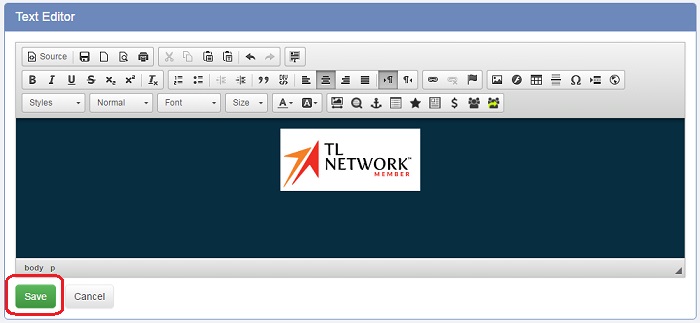
When the size in the preview looks right, select OK.
Select Save: